
Whether you’re a musician trying to nail the perfect tempo, a DJ syncing tracks, or a producer building beats from scratch, understanding and controlling BPM (beats per minute) is absolutely fundamental to what you do. The good news? You don’t need expensive hardware or complicated software anymore. A free online BPM counter with tap tempo and metronome features can handle everything right from your browser.
In this guide, we’ll walk you through everything you need to know — what these tools do, how to use them, and why they’re genuinely useful for musicians at every level.
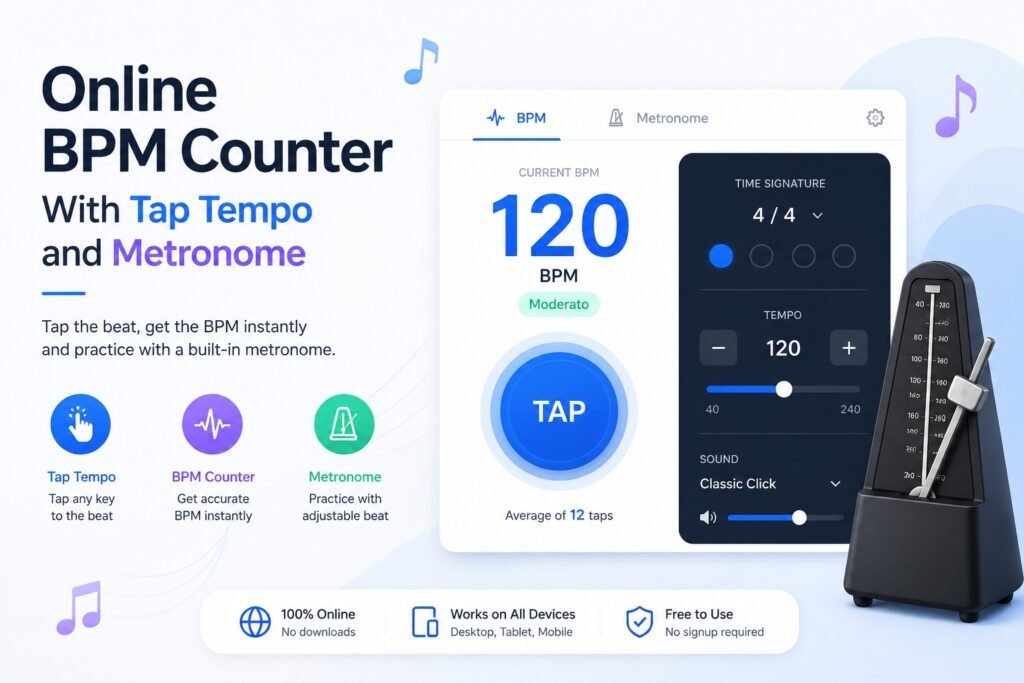
What Is a BPM Counter and Why Does It Matter?
BPM stands for beats per minute, and it’s essentially the heartbeat of any piece of music. A slow ballad might sit around 60–70 BPM, while a high-energy EDM track could push past 140 BPM. Knowing the exact tempo of a song helps you stay in sync, collaborate with other musicians, set loops correctly, and keep your performances tight and professional.
A BPM counter is a tool that measures this tempo. Online BPM counters make this accessible without downloading anything — just open a tab and start tapping.
Who Needs a BPM Counter?
The short answer: a lot more people than you might think.
Guitarists and drummers use BPM tools to lock in with backing tracks. Producers use them to match samples or set up their DAW projects correctly. Fitness instructors use BPM to match workout music to exercise intensity. Even dancers use tempo counters to choreograph routines with precision. If rhythm matters to your work, a BPM counter belongs in your toolkit.
How Does an Online BPM Counter Work?
An online BPM counter is surprisingly simple to use. Most tools work on what’s called tap tempo — you tap a button (or your keyboard’s space bar) in time with the music, and the tool calculates the average time between your taps to determine the BPM.
Here’s the basic process:
You open the tool in your browser, start playing the song or beat you want to measure, and tap along with every beat. After about four to eight taps, the counter starts displaying a reliable BPM reading. The more taps you make, the more accurate the result becomes, because the tool averages out any minor inconsistencies in your tapping rhythm.
The Tap Tempo Feature Explained
Tap tempo is the crown jewel of any BPM counter. It’s intuitive, fast, and requires no audio input or microphone — just your timing and a button.
Most online tap tempo tools let you reset the count whenever you want to start fresh, and many display both the current BPM and a running average. Some even let you tap along using different keys on your keyboard, which makes the experience feel more natural and responsive during a live session.
The beauty of tap tempo is that it works with any music source. Whether you’re listening through headphones, watching a live performance, or working from memory, you can tap along and get a precise reading within seconds.
What Is an Online Metronome and How Is It Different?
While a BPM counter tells you what the tempo is, a metronome keeps the tempo for you. Think of it this way: a BPM counter is a detector, and a metronome is a trainer.
An online metronome produces a steady rhythmic pulse at whatever BPM you set. You practice along with that pulse until playing in time becomes second nature. It’s one of the oldest and most effective tools in music education — now available for free in any browser.
Features to Look for in an Online Metronome
Not all metronomes are created equal. A good online metronome typically includes adjustable BPM (usually from 20 to 300), beat subdivision options (quarter notes, eighth notes, sixteenth notes, triplets), time signature settings (4/4, 3/4, 6/8, and so on), and distinct accent sounds for the downbeat so you always know where beat one falls.
Some advanced tools also let you tap to set the tempo using the tap tempo feature, which is incredibly handy — you tap along with a song, get the BPM reading, and the metronome immediately locks in at that tempo. That connection between the two tools is what makes a combined BPM counter and metronome so powerful.
Using Both Tools Together: A Real-World Workflow
Imagine you’ve heard a song at a gig and you want to write something with a similar feel. Here’s how an online BPM counter and metronome work together in a practical workflow.
First, you pull up your BPM counter and tap along to the song while it plays. After a few bars, you’ve got your reading — let’s say 98 BPM. You make a note of that. Next, you open your metronome, dial in 98 BPM, and set your time signature to 4/4. Now you start sketching out your chord progression or melody while the metronome keeps you honest. You’re already working in the same rhythmic universe as your inspiration.
This workflow sounds simple because it is — and that’s the point. These tools remove friction so you can stay creative.
Practicing with a Metronome: Tips That Actually Help
A common mistake musicians make is setting the metronome too fast too soon. Start slower than you think you need to. If you’re learning a new riff, set the metronome to 50–60% of the target BPM and focus on accuracy. Speed comes naturally once your muscle memory kicks in.
Another useful technique is to practice with the metronome clicking only on beats two and four (the backbeat) rather than all four beats. This trains your internal clock more effectively and mirrors how real drumbeats often feel in music.
Benefits of Using an Online BPM Counter Over a Physical One
Physical metronomes and BPM counters are great, but online versions offer some real advantages worth knowing about.
They’re free and always accessible — no batteries, no carrying extra gear. They’re often more feature-rich than entry-level physical devices, offering visual displays, subdivision options, and tap tempo in a single package. They update automatically, so developers frequently add new features based on user feedback. And because they run in a browser, they work on your phone, tablet, or laptop without any additional setup.
For studio musicians, having a metronome tab open while working in a DAW is a quick and lightweight alternative to activating your DAW’s built-in click track — especially useful when you’re just sketching ideas and don’t want to deal with project settings.
Best Practices for Getting Accurate BPM Readings
Getting a precise BPM reading takes a little practice, but a few habits make a big difference.
Tap on every beat rather than every other beat or every bar — the more data points the tool has, the better. Let the tool gather at least eight taps before trusting the reading. If the BPM display is jumping around a lot, that’s usually a sign you’re not tapping consistently — slow down and focus on the downbeats first. For tracks with complex rhythms, try tapping only on the kick drum or bass notes to anchor your timing.
Also, if the song has a tempo change (common in jazz or live recordings), reset the counter and start fresh at the new section rather than trying to average across the change.
Conclusion
An online BPM counter with tap tempo and a metronome might seem like a small thing, but these tools can genuinely transform how you work with music. Whether you’re a beginner trying to build a sense of timing or a seasoned pro who needs a quick tempo check mid-session, having these tools a click away is a massive convenience.
The combination of tap tempo (to detect) and metronome (to maintain) covers both sides of the tempo equation. Best of all, you don’t need to spend a single dollar to get access to professional-grade functionality. Open a browser, find a solid online BPM tool, and start making tighter, more intentional music today.
Frequently Asked Questions (FAQs)
Q1: What is tap tempo and how do I use it? Tap tempo is a feature that lets you determine the BPM of a song by tapping in time with the music. Open the BPM counter tool, play your music, and tap a button or press your spacebar along with the beat. The tool calculates the average time between your taps and displays the BPM. Keep tapping for a more accurate reading.
Q2: How accurate are online BPM counters? Online BPM counters are quite accurate when used correctly. The key is consistency — the more steadily you tap, and the more taps you provide, the more precise the result. Most tools average your input over multiple taps, which smooths out any small timing errors.
Q3: Can I use an online metronome for recording sessions? Absolutely. Many musicians use an online metronome through headphones while recording to keep their timing steady. Just make sure your headphone mix doesn’t bleed into the microphone. For more controlled environments, your DAW’s internal click track may be preferable, but an online metronome works well for practice sessions and informal recordings.
Q4: What’s the difference between BPM and time signature? BPM tells you how fast the beat moves, while time signature tells you how beats are grouped. For example, 120 BPM in 4/4 time means there are 120 beats per minute, organized into groups of four. The same 120 BPM in 3/4 time groups those beats in threes, giving the music a waltz-like feel. Online metronomes let you set both independently.
Q5: Is there a way to find the BPM of a song automatically without tapping? Yes — some apps and software can analyze audio and detect BPM automatically using beat detection algorithms. However, browser-based tools typically rely on tap tempo for accuracy and compatibility. Apps like Tunebat or features within Spotify’s developer tools can identify song BPMs automatically if you prefer a hands-free approach.
Q6: What BPM should I practice at as a beginner? Start wherever feels comfortable — usually somewhere between 60 and 80 BPM for most exercises. The goal in the beginning is accuracy, not speed. Once you can play through something cleanly ten times in a row at a slower tempo, bump the BPM up by five and repeat. Gradual progression beats forcing speed every time.
Q7: Can I use an online BPM counter on my phone? Yes. Most online BPM counters and metronomes are mobile-friendly and work in any modern browser on iOS or Android. Some tools are also available as dedicated apps if you prefer something you can use offline, but browser-based options are perfectly capable for on-the-go use.